Connect OpenAI or Anthropic
These reference screenshots show where to find the controls. Provider screens and button labels can change. Click an image to enlarge it. Example names are not values you need to copy; never include your full secret key in a screenshot.
1. Create a key with your provider
Use an organization-owned provider account so your company can manage access and billing when staff change.
OpenAI
- Sign in to the OpenAI API platform.
- Select the organization and project that should pay for this usage.
- Open API keys and create a secret key. Give it a recognizable name, such as
Naukr AI production. - Copy the key when it is displayed and keep it in your approved password manager.
- Confirm the project's billing is ready and its permissions allow the models and features you plan to use.
OpenAI's key guide explains where to find these controls. ChatGPT and API billing are separate.
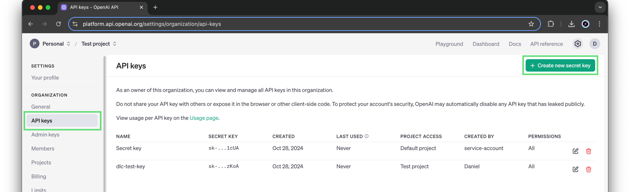
Open API keys, then select Create new secret key. Screenshot: OpenAI Help Center.
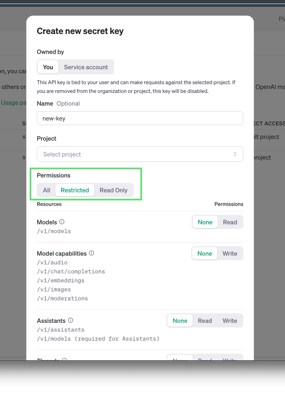
Name the key and select the intended project. The example shows permission controls; allow the models and features your organization will use, including embeddings for document search. Screenshot: OpenAI Help Center.
Anthropic
- Sign in to the Anthropic Console.
- Select the organization or workspace that should pay for this usage.
- Open API keys, select the intended workspace, and select Create key. Give it a recognizable name, such as
Naukr AI production. - Copy the key into your approved password manager.
- Check the Console's billing balance and spending settings.
See Anthropic's key guide and API billing guide. Check API billing even if you already pay for a Claude subscription.

Select Create key on the API keys page. Reference screenshot: Zapier.
Choose the workspace and enter your own key name. Save the key privately when it appears. Reference screenshot: Zapier. Current steps: Anthropic workspace guide.
If Create key is unavailable, ask your Anthropic account administrator for access. A key belongs to the workspace where you create it, so check the workspace before continuing.
2. Connect the key in Naukr AI
- Open the Naukr AI admin panel and select the intended organization.
- Go to Settings → API keys.
- Select Connect OpenAI or Connect Anthropic.
- Paste the key into API key.
- Select Test and connect.
- Wait for the confirmation, then check the connection status.
If you are configuring a parent organization, review child sharing before other users start work. A new parent connection covers eligible direct children by default.
3. Confirm it works
- Open a feature that uses the provider you connected.
- Send a short question using that provider's model, if the feature lets you choose.
- Confirm an answer is returned.
- Open Settings → Usage & Quota and review the usage shown for your organization.
- Check the provider's usage dashboard for the same account. Reporting may not appear immediately.
For OpenAI knowledge features, also try a small supported document and a question about it. A successful chat alone does not check document processing or search.
Replace a key
- Create a replacement key with the same provider.
- In Settings → API keys, open that provider's Manage connection.
- Enter the new key and select Test and replace.
- Check the status and complete a small task.
- Revoke the old key in the provider's dashboard after confirming the replacement works.
Replacing a parent key also affects children using that connection. Children do not need to receive or paste the key themselves.
Disconnect a key
Open Manage connection → Disconnect. Removing it from Naukr AI does not revoke the key in the provider's dashboard.
When the last effective organization-owned AI connection is removed, the organization returns to its platform allowance. Another own or parent-provided AI connection can keep it in BYOK mode. Review Usage & Quota after disconnecting, and make sure the provider needed by your next task is available.
An invalid key is different from a disconnected key: a rejected or expired key needs repair and does not trigger a silent switch to platform billing.
Do not put keys in chat messages, screenshots, emails, or support tickets. Share only the provider name, organization name, time, and error message when asking for help.